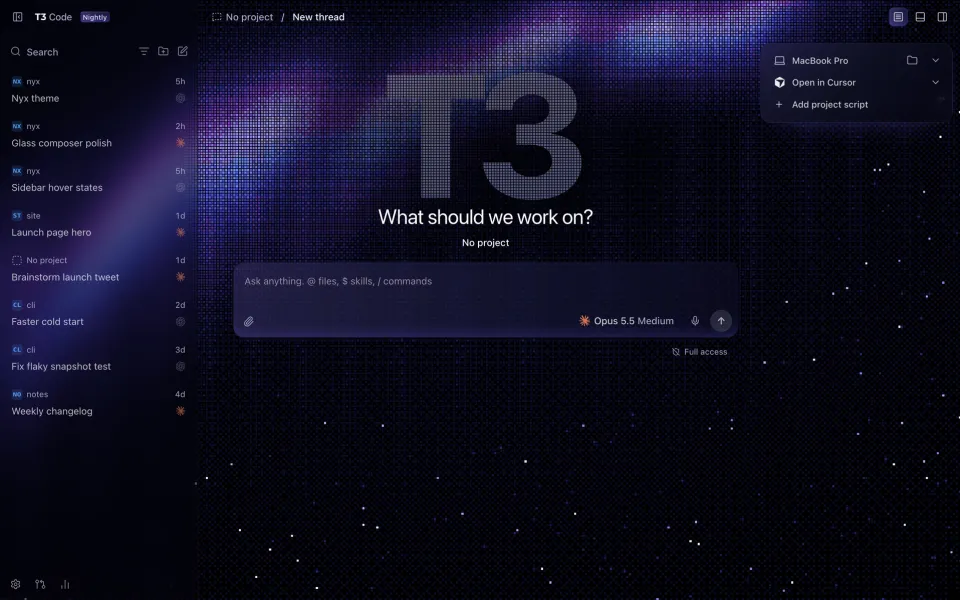
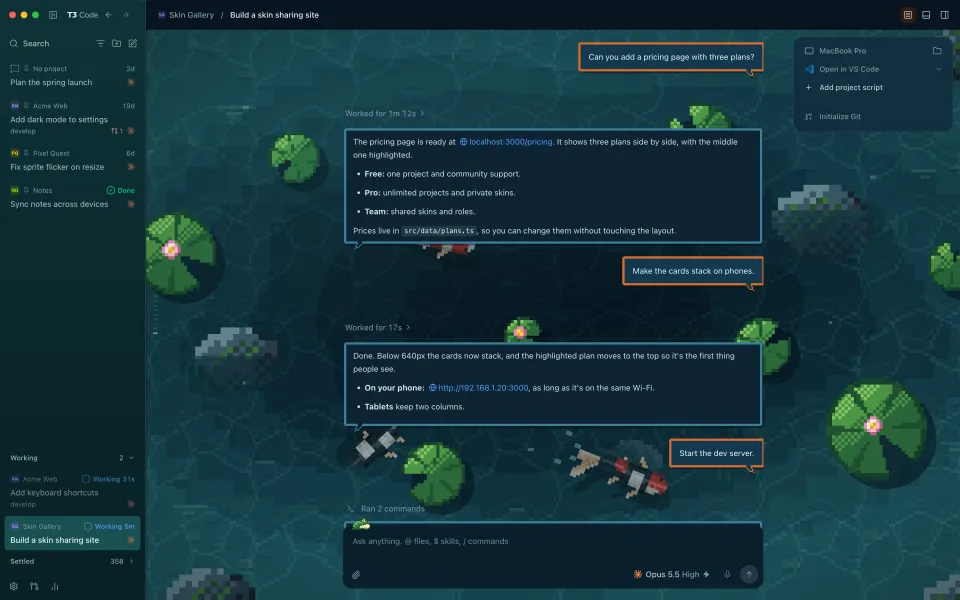
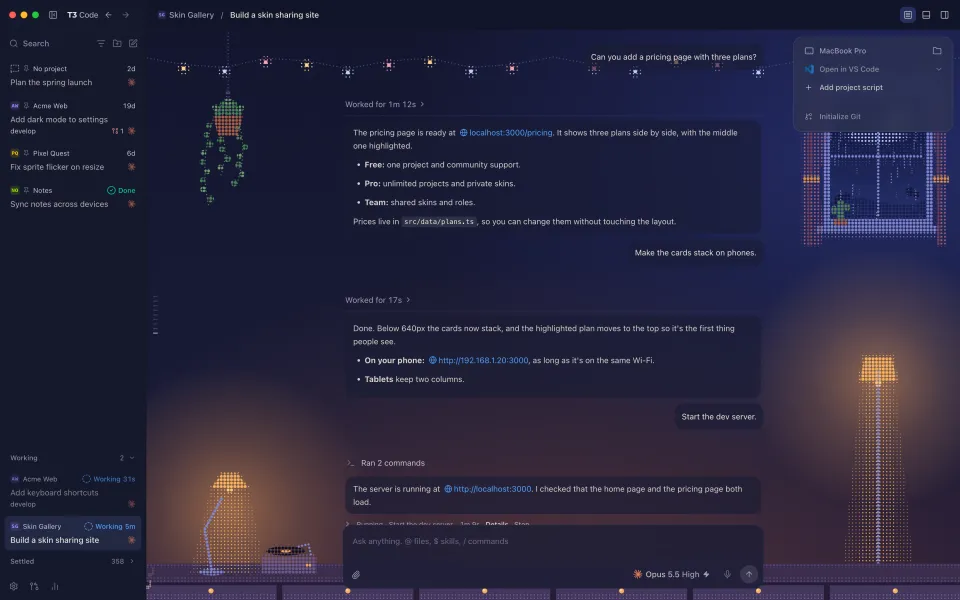
T3 Code themes: import a skin file or make your own
Most T3 Code skins come in a JSON file. Drop it into Settings to change the window colors, surfaces and background. If a skin uses a separate background image, its page tells you where to save it.
Install a skin
- Download the skin file from its page in the T3 Code gallery.
- In T3 Code, open Settings → Appearance and press Add.
- Drop the file in. The skin applies at once.
To go back, open Settings → Appearance again and choose another skin or the default.
What is in a skin file
The file names the skin and whether it is light or dark, sets the canvas and accent colors and a few surface colors, and can add CSS for the rest, such as a background picture or glass panels:
{
  "version": 1,
  "name": "Arctic",
  "appearance": "light",
  "canvas": "#f4f8fc",
  "accent": "#2f6fde",
  "colors": {"text": "#142235", "sidebar": "#eaf1f8", "textMuted": "#5f7187", "messageSurface": "#e2ecf8"},
  "css": "[data-chat-canvas]{background-image: radial-gradient(...)}"
}
Make your own
Start from a skin you like: download its file, change the colors, and import it again under a new name. Or ask the agent in T3 Code to write one, for example "make a T3 Code skin file with a warm paper background and dark green accents". Keep the CSS small, so the skin survives app updates.
Made one? Send it to us with the file and a screenshot. We list it with a preview and credit to you.