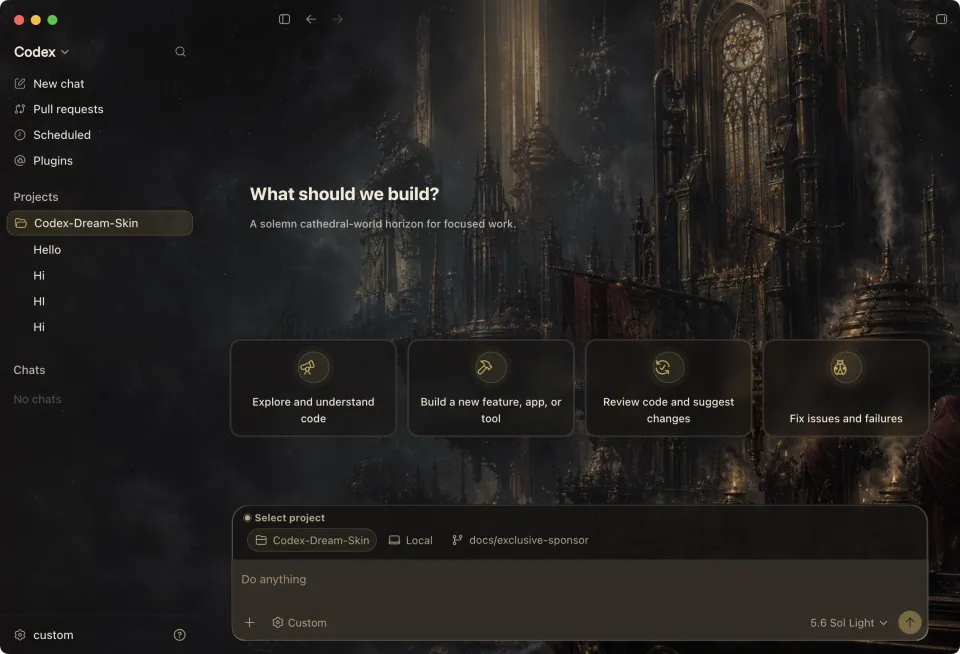
ChatGPT and Codex themes: built-in colors and full skins
The ChatGPT desktop app, with Codex inside it, has its own theme settings for colors and fonts. For backgrounds, glass panels and full-window looks, people use community skins that an agent installs for you.
Built-in themes
Open Settings → Appearance. You can choose Light, Dark or System, start from a base theme such as Codex, Catppuccin or Dracula, and set the accent, background and foreground colors, the UI and code fonts and their sizes, the contrast, and a translucent sidebar.
To share a theme, use Copy theme and send it to a friend, who adds it with Import. These themes change colors and fonts only: the background is a color, not a picture.
Full skins
The skins in the ChatGPT gallery go further: a picture or a scene behind the workspace, frosted panels and matching colors. They are applied by open-source engines that inject styles into the app while it runs. Each skin page gives you a prompt to paste to your agent, which installs the engine and the skin and tells you how to undo it.
- Engines can see the app window, so read what one does before you install it.
- An app update can break a skin until the engine catches up.
- A few skins patch the app files instead. They keep a backup and can restore it, but on macOS the app is re-signed, which can stop automatic updates. Their pages say so.
Make your own
For a color theme, build it in Settings → Appearance and share it with Copy theme. For a full skin, ask your agent to make one with an engine, from a picture you like or a description. Some skins in the gallery come with a prompt that recreates the look, which is a good place to start.
Made one? Send it to us with a screenshot, and we will list it with credit to you.