Claude Code themes: terminal colors, desktop skins, or your own
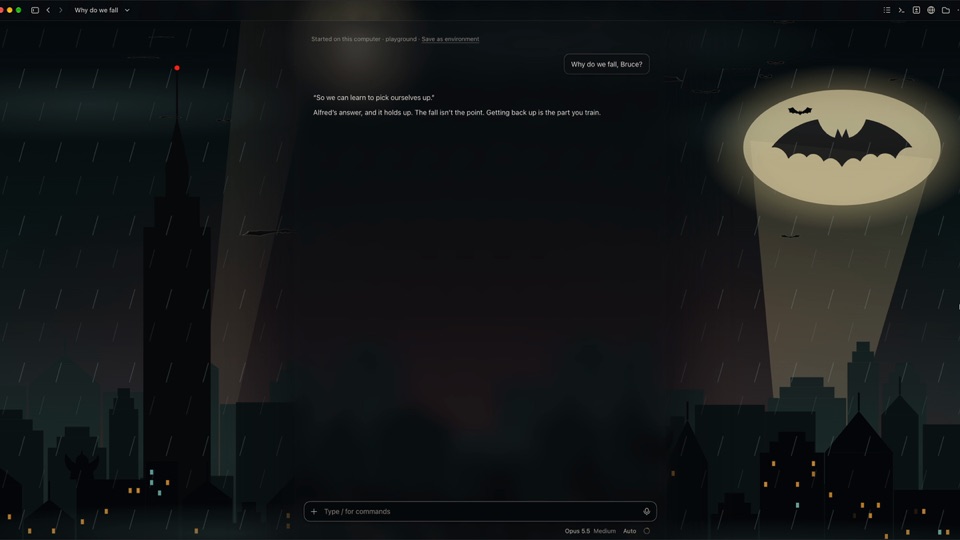
Claude Code has two kinds of theme. The terminal has color presets. The desktop app goes much further: a theme there is a small plugin that can recolor the Code tab and draw an animated scene behind the conversation.
Terminal colors or a desktop skin
In the terminal, a theme is a set of colors for Claude Code's own text, borders and diffs. You pick one with /theme, and a custom one is a small JSON file. The next two sections cover it.
In the desktop app, themes are mods: small TypeScript functions that ship inside plugins. A theme mod can set the colors of the Code tab for light and dark mode, and put a backdrop behind the conversation, from a still picture to a full animated scene. Colors need Claude Code v2.1.324 or later in the Code tab; backdrops need v2.1.319 or later. The terminal draws no backdrop.
Change the terminal theme
Run /theme, or open the theme picker in /config. The built-in presets are dark and light, a colorblind-friendly (daltonized) version of each, and an ANSI version of each. The auto option follows your terminal's light or dark background, so it switches when your system appearance does.
Claude Code colors only its own interface. The terminal's background, font and color scheme come from the terminal app, so set those in iTerm2, Ghostty, Windows Terminal or whichever you use, then pick the Claude Code theme that matches it.
Make a custom terminal theme
In /theme, choose New custom theme… at the end of the list, give it a name, and pick the colors to change while a preview shows the result. Press Ctrl+E on a custom theme to edit it later.
Each custom theme is a JSON file in ~/.claude/themes/, and the file name is its id. It has three optional fields: name, the label shown in /theme; base, the preset it starts from (dark, light, dark-daltonized, light-daltonized, dark-ansi or light-ansi); and overrides, the colors to change. A color can be #rrggbb, rgb(r,g,b), ansi256(n) or an ANSI name such as ansi:cyanBright.
A Dracula theme, the example in Anthropic's own docs, saved as ~/.claude/themes/dracula.json:
{
  "name": "Dracula",
  "base": "dark",
  "overrides": {
    "claude": "#bd93f9",
    "error": "#ff5555",
    "success": "#50fa7b"
  }
}
Catppuccin works the same way. This one, saved as ~/.claude/themes/catppuccin-mocha.json, takes its colors from the Catppuccin Mocha palette:
{
  "name": "Catppuccin Mocha",
  "base": "dark",
  "overrides": {
    "claude": "#cba6f7",
    "error": "#f38ba8",
    "success": "#a6e3a1",
    "warning": "#f9e2af",
    "planMode": "#89b4fa",
    "userMessageBackground": "#313244"
  }
}
Claude Code watches the folder and applies a saved change to the running session. If ~/.claude/themes/ did not exist when the session started, restart once after adding the first file. Every color you can set, such as diffAdded, promptBorder or userMessageBackground, is listed in Anthropic's terminal guide. Custom themes need Claude Code v2.1.118 or later.
A plugin can carry terminal themes too: each themes/<name>.json file in it shows up in /theme once the plugin is installed.
Install a desktop theme
Open a local session in the Code tab of the desktop app, then install the plugin that carries the theme. Anthropic publishes a set of scenes in its Theme Examples plugin:
claude plugin install theme-examples@claude-plugins-officialApply one by name in the session, for example /custom-theme night-reef, and turn it off with /custom-theme off.
A theme from a creator lives in their own marketplace, a GitHub repository. Add the marketplace, install the plugin from it, then start a new session so it loads:
claude plugin marketplace add <owner>/<repo>
claude plugin install <plugin>@<marketplace>
You can do the same from the app: press the + button next to the prompt and choose Add plugins. Or paste the install request to Claude and let it run the commands. Every skin in the Claude gallery lists its exact commands.
A mod is code with the same access to your machine as Claude Code. Read the source of a community theme before you install it.
Remove a theme
Turn the theme off in the session, or disable or uninstall its plugin from Manage plugins in the desktop app (claude plugin uninstall <plugin> from a shell), then start a new session.
Make your own
The quickest way is to ask Claude. In a local Code-tab session, describe what you want:
- "Make a mod that makes the app cream in light mode and dark brown in dark mode."
- "Make a mod that draws a slow pixel-art night sky behind the conversation, with a dark color scheme."
Claude writes the mod, asks before it loads it, and hot-reloads it so you see the result at once. Tell it what to change until it looks right. Anthropic documents the theme calls ($.theme.set with colors and a backdrop) in Draw in the interface with a mod.
To share it, put the plugin in a public GitHub repository with a marketplace file, so anyone can install it with the two commands above. Then send it to us: we list it with a preview, the install steps and credit to you.